Over the last month, people arrived in our free planning poker rooms about forty times by clicking a link inside Microsoft Teams. We did not build anything for Teams. Somebody opened a room, pasted the URL into a meeting chat, and their colleagues clicked it.
That is the whole method, and it is the one we would recommend to most teams on Teams: run the call in Teams, run the cards in the browser. You skip the app store, the admin approval and the question of who is allowed to add what to which meeting. What you do have to think about is the screen, because that is where a Teams session actually goes wrong.
The setup, before anyone joins
Open the room ten minutes early. On our free planning poker tool that means typing your name and picking a deck: Fibonacci, powers of two, or T-shirt sizes, each with a "?" and a coffee card for "no idea" and "I need a break". Whoever opens the room runs it, so open it yourself if you are facilitating.
Paste the link into the meeting's chat before the meeting starts, not halfway through the first story. The chat sticks to the meeting, so people who join late find it at the top instead of asking for it again. The room's address is an eight-character code that nobody will guess, and it is not indexed by search engines, but anyone holding the link can sit down. Post it in the meeting chat, not in a channel with two hundred people in it.
And write the stories you want to size into a list somewhere you can copy from. You will put them on the table one at a time, and typing them live while six people watch is how a fifteen-minute session becomes forty. If you are unsure which stories deserve cards at all, bring six, not twenty-three.
The screen problem nobody mentions
Teams on a single laptop screen fills that screen. Ask people to vote in a browser and half of them start alt-tabbing, lose the call window, and come back with "sorry, where are we?"
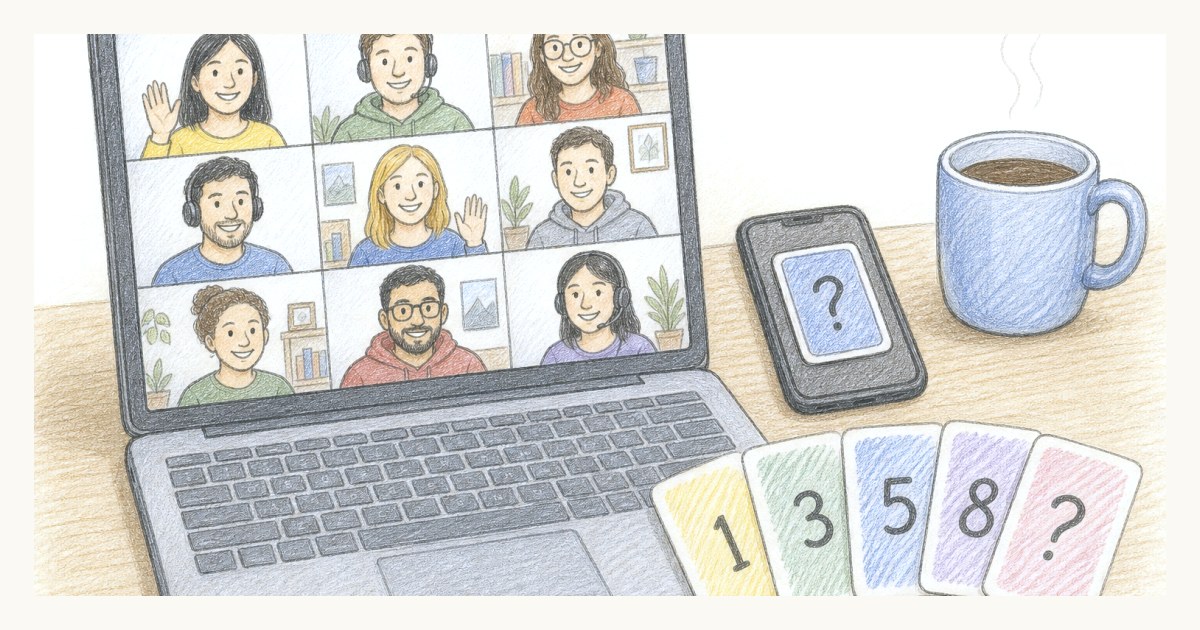
The fix is to stop asking everybody to juggle. The facilitator shares their screen with the room on it. That is safe, because the table only shows who has played, never what they played, so sharing it gives nothing away. Everyone else votes wherever is easiest, and for a lot of people that is their phone. The room works fine on a phone, and a phone on the desk next to the laptop means nobody leaves the call to play a card.
When the last card is played, every card flips at once, on every screen, including the shared one. You do not have to click reveal, though the facilitator can reveal early if someone has wandered off.
Hybrid teams, and the meeting room screen
If part of the team sits in a meeting room with a Teams Room device on the wall, put the room link on that screen too, but join it as an observer. Our join form has a checkbox for exactly that. An observer sits at the table, sees the reveal and the spread, and holds no cards, so the wall display never blocks a round by "not having voted yet". The people in the room vote from their own phones like everybody else.
This is the one place where hybrid estimation is easier than fully remote. The people in the room see the reveal together and react out loud, and the people at home see the same cards at the same moment instead of hearing about them a sentence later.
When the facilitator's Teams crashes
It will happen eventually. The facilitator's laptop decides it is time for an update, and the person holding the reveal button is gone.
We built for this because it kept happening to us. The room waits five minutes for an absent facilitator, long enough to survive a reboot or a coffee, and after that anyone still at the table can take the chair. Nobody has to start a new room, and the votes already cast stay where they are. If the original facilitator comes back, opening the link in the same browser puts them back in their own seat.
After the reveal, read the spread
This part is the same in Teams as anywhere else, and it is the part teams skip. When the cards turn over you see the spread, the average, and the card most of the room played. Three people on a 3 and one on a 13 is not a 5. It is four people picturing four different pieces of work, and the useful next minute is asking the 13 what they know. We wrote about why the disagreement is the real output at more length.
When everyone played the same card, the room writes it down by itself. When they did not, the facilitator records whichever card the room settles on after talking it through. Either way the estimates build up into a list for the session. Copy it before you close the tab. It pastes as tab-separated text, so it drops straight into Excel or a ticket, and the room deletes itself, list and all, about twelve hours after the last person leaves. We keep no copy, which is the point, and it also means nobody can rescue it for you on Monday.
When a Teams app is the better choice
There are planning poker apps in the Teams store, and some of them run inside the meeting itself. You open them from the Apps button in the meeting controls and they appear in a panel on the right. For some teams that is genuinely nicer: no browser, no link, and the app stays attached to a recurring meeting so it is there every sprint.
The cost is everything around it. Microsoft's own documentation says only meeting organisers and presenters can add apps to a meeting, and attendees can use them but "might not be able to use every feature". Teams admins can block third-party apps across the whole organisation or one by one, and in Microsoft's government clouds third-party apps are blocked by default. You can request an app from inside Teams, and then you wait. For a contractor or a client joining from another company, whether the app works for them depends on both organisations' settings.
So our honest advice splits two ways. If your company has already approved a planning poker app and someone has pinned it to your sprint planning meeting, use it. The best estimation tool is the one already open. If nobody has, do not spend a sprint waiting for an approval to come through for a meeting that needs fifteen minutes and a link. And if you are still choosing between the browser tools, we compared the free ones and where each stops being free, ours included.
One thing that is not a reason to install anything: wanting estimates to come out more accurate. No app does that. A small team that keeps finding planning poker heavy might not need it every sprint, and there are quicker ways to size most of a backlog.
If you try it on your next call, open the room before the meeting and post the link first. That one habit removes most of the friction, whichever tool you end up using.
Frequently asked questions
Can you do planning poker in Microsoft Teams?
Yes. The simplest way is to open a browser-based planning poker room, paste its link into the meeting chat, and have everyone vote from their own browser while you talk on the call. Teams also has planning poker apps in its app store that run in the meeting's side panel, but those have to be added to the meeting and allowed by your organisation's Teams admin.
Do I need a Teams app for planning poker?
No. Planning poker only needs two things a Teams call does not provide: private votes and a simultaneous reveal. A free room you open in the browser gives you both, and it works the same for people inside and outside your organisation. A Teams app is worth it mainly when your company has already approved one and you want it pinned to a recurring meeting.
Why can't I add a planning poker app to my Teams meeting?
Usually because of a setting you cannot see. Microsoft lets Teams admins block third-party apps for the whole organisation or per app, and in its government clouds third-party apps are blocked by default. Only meeting organisers and presenters can add apps to a meeting, so attendees cannot add one at all. You can request the app from your admin, or use a browser link instead.
How do you keep the estimates from a planning poker session?
In Scrumpy's free room, each agreed estimate is recorded, automatically when everyone played the same card or by the facilitator otherwise, and the room keeps a list of them for the session. Copy that list before you leave: it pastes as tab-separated text into a spreadsheet or ticket, and the room and its list are deleted about twelve hours after the last visit.